Setting Up an Instagram Feed Widget
Connect your Instagram Business or Creator account and display your posts, photos, and reels on your website.
In This Article
What you need before you start
To use an Instagram feed widget, you need an Instagram **Business or Creator** account (not a personal account), and that account must be connected to a **Facebook Page**. This is a hard requirement from Meta — there is no Facebook-free way to connect an Instagram feed.
If you currently have a personal Instagram account, you can convert it to a Business or Creator account for free in the Instagram app (Settings → Account type and tools → Switch to professional account) and link it to a Facebook Page. The whole process takes about two minutes and you won't lose any posts or followers.
Why is Facebook involved?
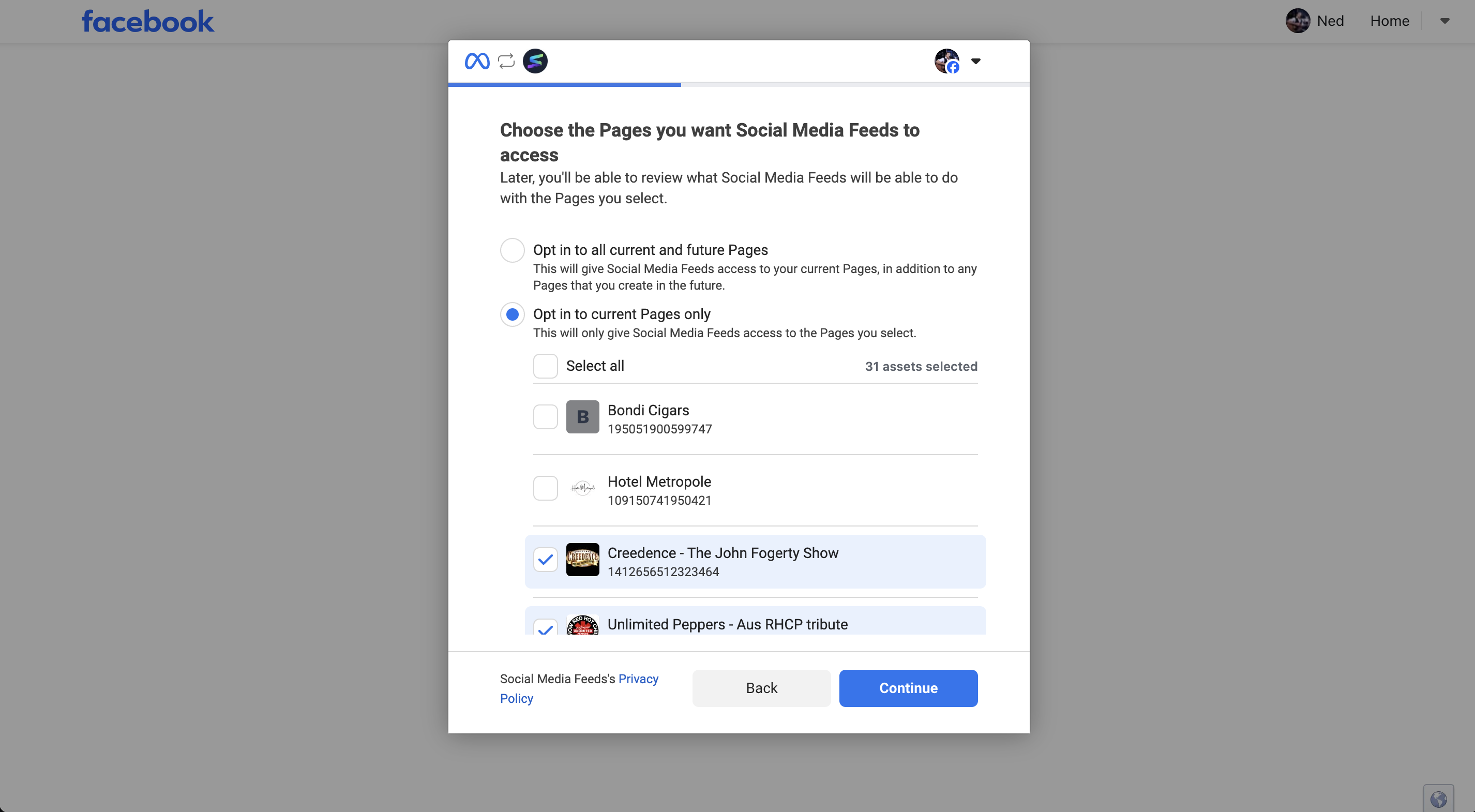
Instagram is owned by Meta (the company behind Facebook), and the only official, supported way to pull your posts is through Meta's Graph API. That API is accessed via Facebook login, which is why connecting an Instagram widget sends you to a Facebook sign-in screen.
We deliberately use this official API rather than scraping your public profile. The API is far more reliable, keeps your feed fresh, and won't break when Instagram changes their website — but it does mean a Facebook Page link is required by Meta. If you don't have a Facebook account, you'll need to create one and a Facebook Page to use the Instagram widget.
Connecting Your Account
When you create an Instagram widget, you'll be redirected to Meta's secure login page. Log in with your Facebook account that's linked to your Instagram Business account. Grant the requested permissions — we only ask for read access to your posts and profile.
Once authorised, your latest posts will be pulled in automatically. The connection is maintained behind the scenes with automatic token refreshing.
Display Options
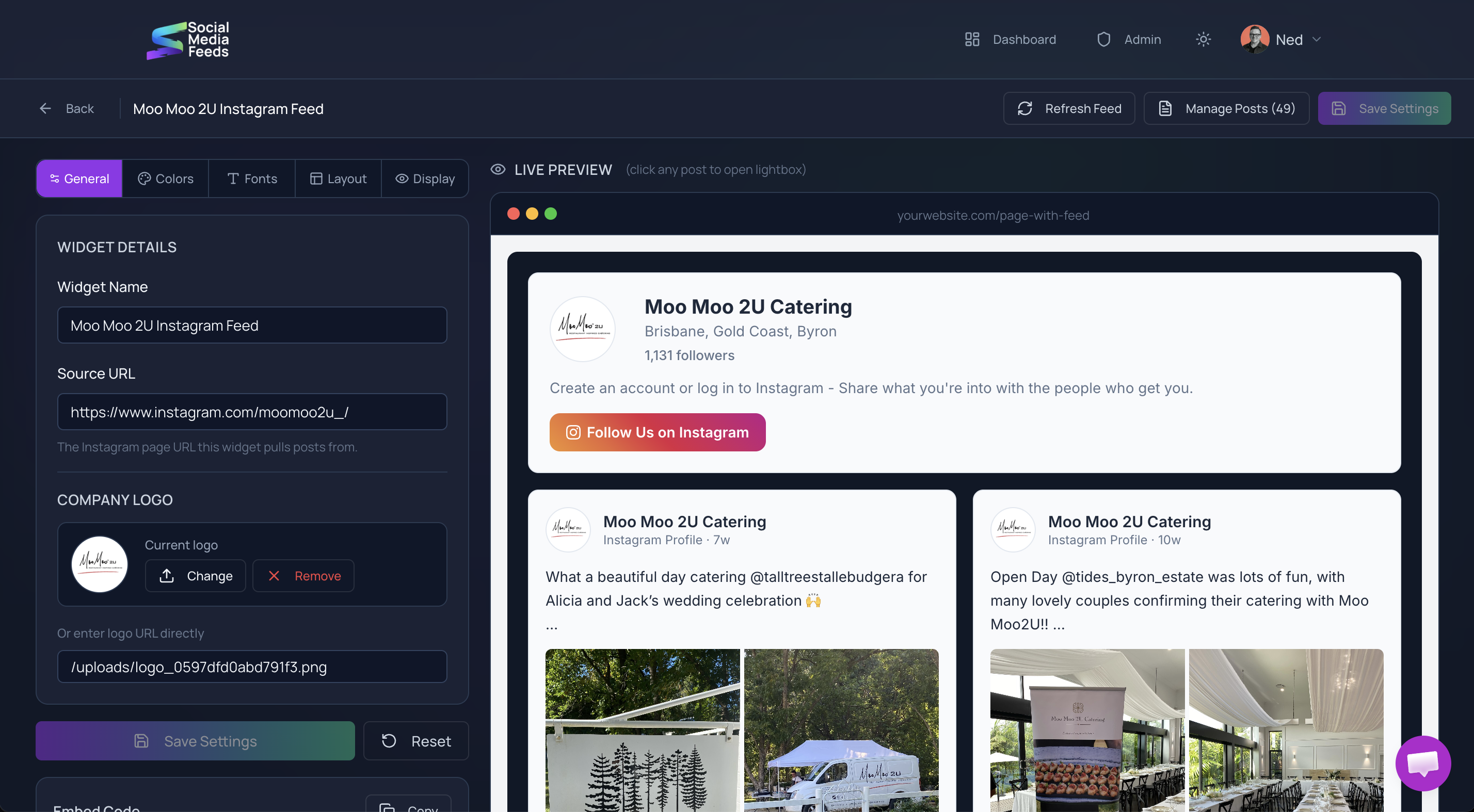
Instagram feeds look great in card layout for visual-heavy businesses, especially if you want to include captions and engagement data. Carousel layout works well as a horizontal strip showcasing your latest posts.
You can control how many posts to display. Six to twelve posts is usually the sweet spot — enough to show variety without overwhelming the page.
Tips for Best Results
Place your Instagram feed on your homepage, about page, or a dedicated gallery page. Avoid placing it near checkout or action-focused areas where it might distract visitors.
Remember that your embedded feed is an extension of your website — make sure your Instagram content strategy aligns with the professional image you want to present to website visitors.