LinkedIn Feed Widget for Your Website
LinkedIn doesn't offer a way to embed your company feed — so you need a third-party widget. Here's how to showcase your thought leadership directly on your website.

Table of Contents
LinkedIn is where B2B relationships are built. Your company's LinkedIn page is likely home to valuable content — industry insights, company updates, thought leadership posts, and professional announcements. But all that content stays locked within the LinkedIn ecosystem, invisible to the prospects and clients browsing your website. Unlike Instagram and Facebook, LinkedIn doesn't offer a native way to embed your company feed on a website. This makes a third-party LinkedIn feed widget one of the few ways to bridge your LinkedIn presence with your website — and a powerful tool for building B2B credibility.
Why LinkedIn Content Belongs on Your Website
For B2B companies, professional services firms, and enterprise businesses, LinkedIn is often the primary social platform. Your company page posts carry weight with decision-makers — the same people who visit your website when evaluating your services.
Displaying your LinkedIn feed on your website signals professional authority. When a potential client sees regular thought leadership posts, industry commentary, and company updates, it reinforces that your business is active, knowledgeable, and engaged in your industry.
LinkedIn content also provides a different flavour of social proof compared to reviews or Instagram photos. It shows professional credibility — the kind of trust signal that matters in B2B purchasing decisions where stakes are higher and sales cycles are longer.
The LinkedIn Embedding Challenge
LinkedIn is one of the most restrictive social platforms when it comes to embedding content. Unlike Facebook and Instagram (which offer APIs through Meta), LinkedIn's public API doesn't provide a straightforward way to embed company page feeds.
LinkedIn does offer a "Share" button and individual post embeds, but there's no official way to display a live, auto-updating feed of your company's posts. This means you need a third-party tool that can access your LinkedIn content and render it on your website.
Social Media Feeds is one of the few platforms that solves this problem. It pulls your LinkedIn Company Page posts and displays them in a customisable widget that matches your website's design — something LinkedIn's own tools simply can't do.
Setting Up a LinkedIn Feed Widget
Adding a LinkedIn feed widget to your website with Social Media Feeds takes just a few minutes.
Start by entering your LinkedIn Company Page URL. The platform will pull your latest posts, including text content, images, engagement metrics, and company information like your logo, tagline, and follower count.
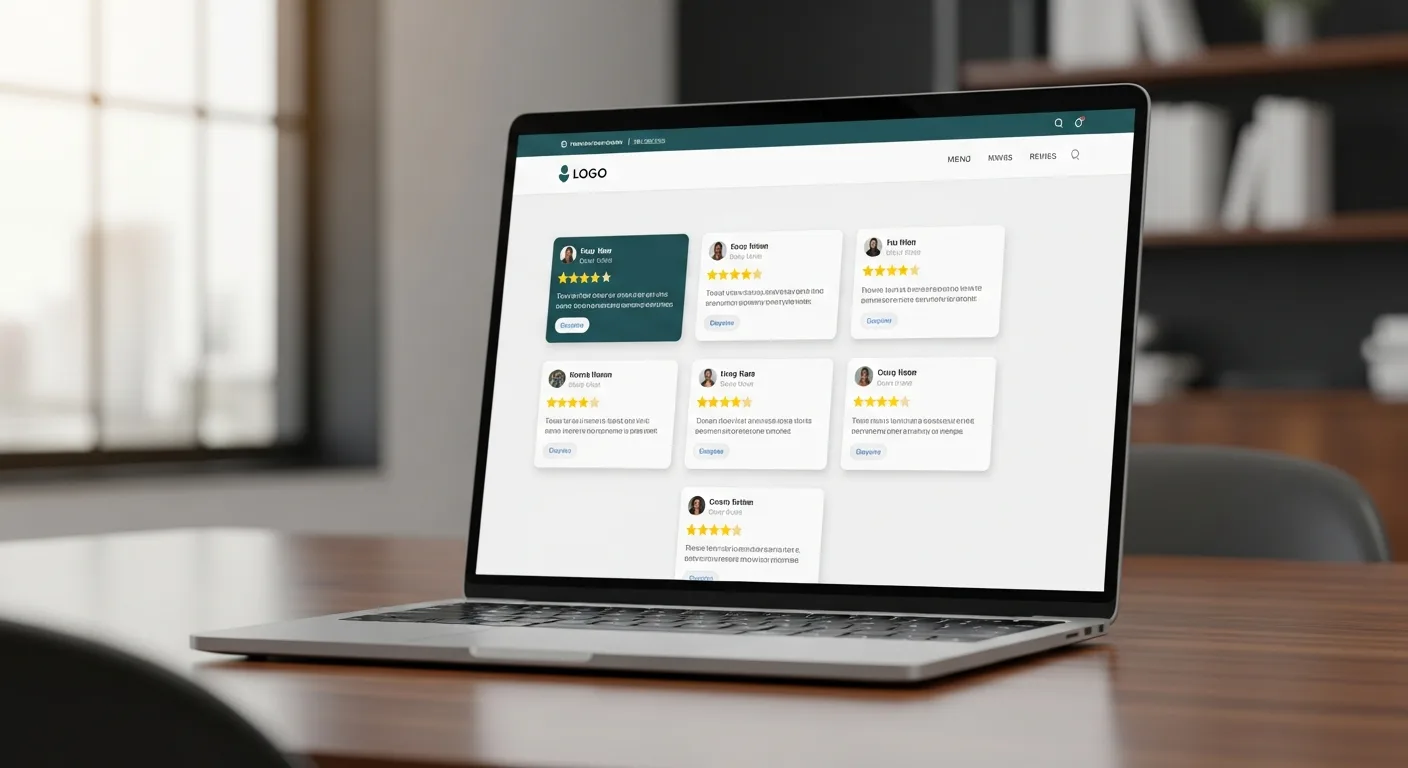
Choose your layout — card view for a rich content experience, list view for a compact display, or carousel for a scrollable horizontal strip. Customise the colours, fonts, and styling to match your brand. The goal is for the LinkedIn feed to look like a native part of your website.
Copy the one-line embed code and paste it into your website. The widget works with any website platform — WordPress, Squarespace, Wix, Webflow, or custom-built sites. Your LinkedIn posts will now update automatically on your website.
Where to Display Your LinkedIn Feed
The best placement for a LinkedIn feed depends on your business type and website structure. For professional services firms, the homepage and about page are strong choices — visitors evaluating your expertise will see your latest insights immediately.
Company news pages or press sections are natural homes for a LinkedIn feed. Instead of manually duplicating announcements across your website and LinkedIn, the feed keeps your news page current automatically.
Career pages can also benefit from a LinkedIn feed. Prospective employees often want to see a company's culture and activity before applying. Your LinkedIn posts give them an authentic view of your business.
For B2B product companies, placing a LinkedIn feed on your resources or blog page adds fresh content between your longer-form articles. It shows visitors that your team is actively engaged in industry conversations.
Maximising Your LinkedIn Widget's Impact
Your LinkedIn feed widget is only as good as the content you post on LinkedIn. To get the most value from the widget, maintain a consistent posting schedule on LinkedIn — at least two to three posts per week keeps your website feed looking active.
Focus on content that works for both audiences. A post that performs well on LinkedIn (thought leadership, industry insights, company milestones) will also resonate with website visitors. Avoid overly casual or internal-only content that might confuse website visitors.
Use images in your LinkedIn posts. Posts with images are more engaging on LinkedIn and they look significantly better in your website widget. A text-only feed can appear sparse, while image-rich posts create a visually appealing display.
Monitor your widget's engagement. If website visitors are clicking through to your LinkedIn page, that's a strong signal that your content is resonating and building trust.
Related widget
LinkedIn Feed Widget for Your Website
Frequently Asked Questions
Can I embed a LinkedIn company feed on my website?
Yes, but not with LinkedIn's own tools. LinkedIn doesn't offer a native feed embed. Social Media Feeds is a third-party widget that pulls your LinkedIn Company Page posts and displays them on your website in a customisable layout.
Do I need a LinkedIn Company Page?
Yes, you need a LinkedIn Company Page (not a personal profile). The widget connects to your company page and displays your organisation's posts, updates, and thought leadership content.
Does the LinkedIn feed update automatically?
Yes. Your LinkedIn feed widget refreshes automatically based on your plan tier — daily on Free and Pro, and twice daily on Business and Agency. New posts appear on your website without any manual action.
Can I customise the LinkedIn widget's appearance?
Yes. You can customise colours, fonts, spacing, border radius, and layout style (card, list, or carousel). The widget should match your website's design and look like a natural part of your site.
How does Social Media Feeds access LinkedIn content?
Social Media Feeds uses a combination of techniques to access your LinkedIn Company Page content, since LinkedIn doesn't offer a public API for feed embedding. The platform handles all the technical complexity — you just paste your Company Page URL and the widget takes care of the rest.